
# ELevate Testing Guide
WARNING
Before beginning, we HIGHLY recommend that you follow system administration best practices and make sure you have backups and/or snapshots of your system before you proceed. It is recommended to do a trial run in a sandbox to verify the upgrade will work as expected before you attempt to upgrade any production system. Please report any issues encountered to the AlmaLinux Bug Tracker (opens new window) and/or AlmaLinux Chat Migration Channel (opens new window)
This guide contains steps on how to upgrade your CentOS 7 machine to AlmaLinux OS 9. As the Leapp tool is designed to perform one-step upgrades, you need to split the upgrade process:
- CentOS 7 to AlmaLinux 8
- AlmaLinux 8 to AlmaLinux 9
- AlmaLinux 9 to AlmaLinux 10 or AlmaLinux Kitten 10
- AlmaLinux 9 to AlmaLinux 10 x86_64_v2 or AlmaLinux Kitten 10 x86_64_v2
The ELevate Project supports a number of 3rd party repositories:
- EPEL support is currently available for upgrades to AlmaLinux OS only. Note, that the support works only for those packages from EL 9 that are currently available for EL 10. Unavailable packages from EL 9 will remain on the system after the upgrade.
- Docker CE - for all supported operating systems.
- MariaDB - for supported operating systems.
- nginx - for supported operating systems.
- PostgreSQL - for all supported operating systems.
- Imunify - for upgrades to EL 8 and EL 10.
- KernelCare - for supported operating systems.
- TuxCare - for all supported operating systems.
- ELevate - for all supported operating systems.
TIP
The only EPEL vendor is available for upgrades from AlmaLinux 9 to AlmaLinux 10 or to AlmaLinux Kitten x86_64_v2
TIP
You can contribute to the project and add more 3rd party repositories support. See more on the Contribute page.
Currently, the following upgrades are available:
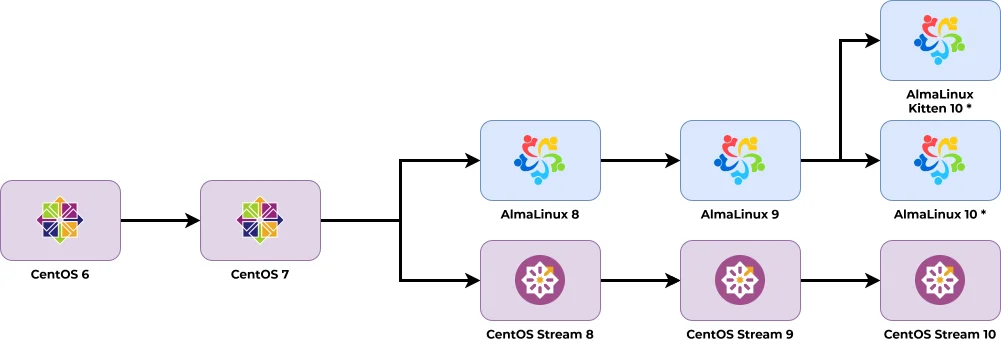
* - Upgrades to AlmaLinux 10 and AlmaLinux Kitten 10 are also available for the x86_64_v2 architecture variant, see Upgrading AlmaLinux 9 to AlmaLinux 10 x86_64_v2.
WARNING
ELevate currently does not support the Raspberry Pi images (opens new window).
# Upgrading air-gapped systems using the target OS installation ISO
ELevate supports performing the upgrade from a local target OS installation DVD ISO image instead of network repositories. Pass the image to leapp with the --iso option — the whole upgrade transaction, including the phase that runs during the reboot, is then fed from the ISO.
The feature is available for the AlmaLinux 8 to AlmaLinux 9 and AlmaLinux 9 to AlmaLinux 10 (including AlmaLinux Kitten 10) upgrade paths.
TIP
The regular offline upgrade path — serving local AlmaLinux and ELevate mirrors over HTTP as described in the ELevate Offline Guide — remains available as well. The ISO-based approach described here is simpler when a full local mirror is not required.
TIP
The ISO replaces only the target OS packages source (BaseOS and AppStream repositories from the DVD). The ELevate packages themselves (leapp-upgrade, leapp-data-almalinux) still need to be installed first — on a fully air-gapped system, deliver them via a local ELevate mirror as described in the ELevate Offline Guide, or copy and install the RPM files manually.
Download the installation ISO image of the target OS to a local disk of the system to upgrade:
AlmaLinux 9 x86_64 (for the AlmaLinux 8 to 9 upgrade path):
curl -LO https://repo.almalinux.org/almalinux/9/isos/x86_64/AlmaLinux-9-latest-x86_64-dvd.isoAlmaLinux 10 x86_64 (for the AlmaLinux 9 to 10 upgrade path):
curl -LO https://repo.almalinux.org/almalinux/10/isos/x86_64/AlmaLinux-10-latest-x86_64-dvd.isoAlmaLinux Kitten 10 x86_64 (for the AlmaLinux 9 to AlmaLinux Kitten 10 upgrade path):
curl -LO https://kitten.repo.almalinux.org/10-kitten/isos/x86_64/AlmaLinux-Kitten-10-latest-x86_64-dvd.iso
TIP
The x86_64_v2 upgrade paths are supported as well — use the installation ISO of the matching architecture variant. For example, for the AlmaLinux 9 to AlmaLinux 10 x86_64_v2 upgrade path:
curl -LO https://repo.almalinux.org/almalinux/10/isos/x86_64_v2/AlmaLinux-10-latest-x86_64_v2-dvd.isoand for the AlmaLinux 9 to AlmaLinux Kitten 10 x86_64_v2 upgrade path:
curl -LO https://kitten.repo.almalinux.org/10-kitten/isos/x86_64_v2/AlmaLinux-Kitten-10-latest-x86_64_v2-dvd.isoWARNING
The ISO file must be located on a local filesystem that stays available during the whole upgrade (e.g.
/rootor/var) — do not place it on a removable or network-mounted filesystem. Keep the file in place until the upgrade is fully finished.Install the ELevate packages and prepare the system as described in the corresponding upgrade path section of this guide (AlmaLinux 8 to 9, AlmaLinux 9 to 10, AlmaLinux 9 to 10 x86_64_v2).
Run the preupgrade check and the upgrade with the
--isooption pointing to the downloaded image:sudo leapp preupgrade --iso /root/AlmaLinux-10-latest-x86_64-dvd.iso sudo leapp upgrade --iso /root/AlmaLinux-10-latest-x86_64-dvd.iso sudo rebootThe rest of the process is the same as with the network-based upgrade: the system boots into the
ELevate-Upgrade-InitramfsGRUB entry, performs the upgrade from the mounted ISO, and reboots into the upgraded system.
TIP
The PowerTools/CRB and third party (vendor) repositories are not available on the installation media. Packages originating from these repositories will be kept back or reported — handle them after the upgrade, once the system is connected or the corresponding local mirrors are available.
# Upgrade CentOS 7 to AlmaLinux 8
Update the system to get the latest updates and reboot your machine. NOTE: Since the CentOS 7 repositories are now offline you will need to swap to the CentOS vault, or you can use our CentOS 7 mirror that we've setup for use with ELevate:
sudo curl -o /etc/yum.repos.d/CentOS-Base.repo https://el7.repo.almalinux.org/centos/CentOS-Base.repo
sudo yum upgrade -y
sudo reboot
Install ELevate testing repo config for CentOS7, and import ELevate GPG key:
sudo curl https://repo.almalinux.org/elevate/testing/elevate-testing.repo -o /etc/yum.repos.d/elevate-testing.repo
sudo rpm --import https://repo.almalinux.org/elevate/RPM-GPG-KEY-ELevate
Install leapp packages and upgrade data for AlmaLinux which is target OS to upgrade to:
sudo yum install -y leapp-upgrade leapp-data-almalinuxStart a preupgrade check. In the meanwhile, the Leapp utility creates a special /var/log/leapp/leapp-report.txt file that contains possible problems and recommended solutions. No rpm packages will be installed at this phase.
WARNING
Preupgrade check will fail as the default install doesn't meet all requirements for upgrading.
sudo leapp preupgradeThis summary report will help you get a picture of whether it is possible to continue the upgrade.
TIP
In certain configurations, Leapp generates /var/log/leapp/answerfile with true/false questions. Leapp utility requires answers to all these questions in order to proceed with the upgrade.
The following fixes from the /var/log/leapp/leapp-report.txt file are the most popular for CentOS 7, but it's recommended to review the whole file.
sudo rmmod pata_acpi
echo PermitRootLogin yes | sudo tee -a /etc/ssh/sshd_config
sudo leapp answer --section remove_pam_pkcs11_module_check.confirm=True
Check the ELevate Frequent Issues page for known and frequent issues and guidance steps to solve them.
Start an upgrade. You'll be offered to reboot the system after this process is completed.
sudo leapp upgrade
sudo reboot
A new entry in GRUB called
ELevate-Upgrade-Initramfswill appear. The system will be automatically booted into it. See how the update process goes in the console.After reboot, login to the system and check how the upgrade went. Verify that the current OS is the one you need. Check logs and packages left from previous OS version, consider removing them or update manually.
cat /etc/redhat-release
cat /etc/os-release
rpm -qa | grep el7
sudo cat /var/log/leapp/leapp-report.txt
sudo cat /var/log/leapp/leapp-upgrade.log
# Prepare the system for upgrading to AlmaLinux 9
WARNING
Skip these steps if your system was NOT upgraded from EL 7.
When successfully upgraded to AlmaLinux 8 OS, consider performing these steps to prepare your system for upgrading to AlmaLinux 9:
Navigate to the /etc/ directory and use an editor of your choice to edit the yum.conf file. You need to remove everything from the exclude line especially that refers to elevate or leapp.
# An example of yum.conf file:
[main]
gpgcheck=1
installonly_limit=3
clean_requirements_on_remove=True
best=True
skip_if_unavailable=False
exclude=python2-leapp,snactor,leapp-upgrade-el7toel8,leapp
Then navigate to the /etc/dnf/ directory and use an editor of your choice to do the same in the dnf.conf file.
Now you can remove/manually upgrade packages left from CentOS 7 without any conflicts.
Check packages left from CentOS 7:
rpm -qa | grep el7An example output with a list of packages:
leapp-data-almalinux-0.5-1.el7.20241127.noarch
leapp-0.18.0-2.el7.noarch
kernel-3.10.0-1160.119.1.el7.x86_64
python2-leapp-0.18.0-2.el7.noarch
leapp-upgrade-el7toel8-0.21.0-5.el7.elevate.4.noarch
kernel-3.10.0-1127.el7.x86_64
As mentioned above, consider removing these packages or upgrading them manually to proceed with upgrade to AlmaLinux 9.
TIP
If you face difficulties while removing the packages, the following command might help you:
sudo rpm -e --nodeps <package_name>You can also check for the packages left from the upgrade process and remove them:
rpm -qa | grep elevate
rpm -qa | grep leapp
Check whether you have the /root/tmp_leapp_py3 directory created and if so delete it.
sudo rm -fr /root/tmp_leapp_py3Clean up your machine.
sudo dnf clean allYou may also have to remove old RSA/SHA1 GPG keys. List the keys:
rpm -q gpg-pubkey --qf '%{NAME}-%{VERSION}-%{RELEASE}\t%{SUMMARY}\n'To remove them, use use the
rpm -ecommand:sudo rpm -e [keyname]After these preparations are completed, you can upgrade your AlmaLinux 8 machine to AlmaLinux 9.
# Upgrading AlmaLinux 8 to AlmaLinux 9
Install ELevate testing repo config for AlmaLinux 8:
sudo curl https://repo.almalinux.org/elevate/testing/elevate-testing.repo -o /etc/yum.repos.d/elevate-testing.repoImport ELevate GPG key:
sudo rpm --import https://repo.almalinux.org/elevate/RPM-GPG-KEY-ELevateInstall leapp packages and upgrade data for AlmaLinux:
sudo yum install -y leapp-upgrade leapp-data-almalinuxStart a preupgrade check. In the meanwhile, the Leapp utility creates a special /var/log/leapp/leapp-report.txt file that contains possible problems and recommended solutions. No rpm packages will be installed at this phase.
WARNING
Preupgrade check will fail as the default install doesn't meet all requirements for upgrading.
TIP
On air-gapped systems, add the
--isooption pointing to the AlmaLinux 9 installation ISO to bothleapp preupgradeandleapp upgradecommands. See Upgrading air-gapped systems using the target OS installation ISO.sudo leapp preupgradeThis summary report will help you get a picture of whether it is possible to continue the upgrade.
TIP
In certain configurations, Leapp generates /var/log/leapp/answerfile with true/false questions. Leapp utility requires answers to all these questions in order to proceed with the upgrade.
TIP
You can also inspect the upgrade report in the Cockpit Web UI. See Inspecting the upgrade report in Cockpit Web UI.
The following fixes from the /var/log/leapp/leapp-report.txt file are the most popular fixes for RHEL8-based operating systems:
sudo sed -i "s/^AllowZoneDrifting=.*/AllowZoneDrifting=no/" /etc/firewalld/firewalld.conf
sudo leapp answer --section check_vdo.confirm=True
You might also find the following issue in the leapp-report file that can interfere with the upgrade. Consider removing the file:
 Network configuration for unsupported device types detected
 Summary: RHEL 9 does not support the legacy network-scripts package that was deprecated in RHEL 8 in favor of NetworkManager. Files for device types that are not supported by NetworkManager are present in the system. Files with the problematic configuration:
   - /etc/sysconfig/network-scripts/ifcfg-eth0
Check the ELevate Frequent Issues page for known and frequent issues and guidance steps to solve them.
Start an upgrade. You'll be offered to reboot the system after this process is completed.
sudo leapp upgrade
sudo reboot
TIP
You might want to remove the make-devel package as it conflicts when running
leapp upgradeand thus this step fails.A new entry in GRUB called
ELevate-Upgrade-Initramfswill appear. The system will be automatically booted into it. See how the update process goes in the console.After reboot, login to the system and check how the upgrade went. Verify that the current OS is the one you need. Check logs and packages left from previous OS version, consider removing them or update manually.
cat /etc/redhat-release
cat /etc/os-release
rpm -qa | grep el8
sudo cat /var/log/leapp/leapp-report.txt
sudo cat /var/log/leapp/leapp-upgrade.log
# Prepare the system for upgrade to AlmaLinux 10
WARNING
Skip these steps if your system was NOT upgraded from EL 8.
When successfully upgraded to AlmaLinux 9 OS, consider performing these steps to prepare your system for upgrading to AlmaLinux 10:
Navigate to the /etc/ directory and use an editor of your choice to edit the yum.conf file. You need to remove everything from the
exclude=line especially that refers to elevate or leapp.# An example of yum.conf file:
[main]
gpgcheck=1
installonly_limit=3
clean_requirements_on_remove=True
best=True
skip_if_unavailable=False
exclude=python2-leapp,snactor,leapp-upgrade-el8toel9,leapp
Then navigate to the /etc/dnf/ directory and use an editor of your choice to do the same in the dnf.conf file.
Now you can remove/manually upgrade packages left from AlmaLinux 8 without any conflicts.
Check packages left from AlmaLinux 8:
rpm -qa | grep el8An example output with a list of packages:
kernel-modules-4.18.0-553.54.1.el8_10.x86_64
leapp-0.19.0-3.el8.noarch
leapp-data-almalinux-0.9-1.el8.20250505.noarch
python3-leapp-0.19.0-3.el8.noarch
leapp-upgrade-el8toel9-0.22.0-3.el8.elevate.1.noarch
kernel-core-4.18.0-553.54.1.el8_10.x86_64
kernel-4.18.0-553.54.1.el8_10.x86_64
As mentioned above, consider removing these packages or upgrading them manually to proceed with the upgrade to AlmaLinux 10.
TIP
If you face difficulties while removing the packages, the following command might help you:
sudo rpm -e --nodeps <package_name>You can also check for the packages left from the upgrade process and remove them:
rpm -qa | grep elevate
rpm -qa | grep leapp
Check whether you have the /root/tmp_leapp_py3 directory created and if so delete it.
sudo rm -fr /root/tmp_leapp_py3Clean up your machine.
sudo dnf clean all
After these preparations are completed, you can upgrade your AlmaLinux 9 machine to AlmaLinux 10.
# Upgrading AlmaLinux 9 to AlmaLinux 10
TIP
These steps can also be used to perform the upgrade:
- from AlmaLinux 9 to AlmaLinux 10
- AlmaLinux 9 to AlmaLinux Kitten 10
- from CentOS Stream 9 to CentOS Stream 10
The only difference is the leapp-data package.
Install ELevate testing repo config for AlmaLinux 9:
sudo curl https://repo.almalinux.org/elevate/testing/elevate-testing.repo -o /etc/yum.repos.d/elevate-testing.repoImport ELevate GPG key:
sudo rpm --import https://repo.almalinux.org/elevate/RPM-GPG-KEY-ELevateInstall leapp packages and upgrade data for AlmaLinux which is target OS:
sudo yum install -y leapp-upgrade leapp-data-almalinuxTIP
For the upgrade to AlmaLinux Kitten 10, please, use the
leapp-data-almalinux-kittenpackage:sudo yum install -y leapp-upgrade leapp-data-almalinux-kittenTIP
For the upgrade to CentOS Stream 10, please, use the
leapp-data-centospackage:sudo yum install -y leapp-upgrade leapp-data-centosStart a preupgrade check. In the meanwhile, the Leapp utility creates a special /var/log/leapp/leapp-report.txt file that contains possible problems and recommended solutions. No rpm packages will be installed at this phase.
WARNING
Preupgrade check will fail as the default install doesn't meet all requirements for the upgrade.
TIP
On air-gapped systems, add the
--isooption pointing to the AlmaLinux 10 installation ISO to bothleapp preupgradeandleapp upgradecommands. See Upgrading air-gapped systems using the target OS installation ISO.sudo leapp preupgradeThis summary report will help you get a picture of whether it is possible to continue the upgrade.
TIP
In certain configurations, Leapp generates /var/log/leapp/answerfile with true/false questions. Leapp utility requires answers to all these questions in order to proceed with the upgrade.
TIP
You can also inspect the upgrade report in the Cockpit Web UI. See Inspecting the upgrade report in Cockpit Web UI.
Currently, the direct upgrade from Almalinux OS 9 to AlmaLinux OS 10.0 goes smoothly. If there is a progressive upgrade from CentOS 7 to AlmaLinux OS 10.0, please check the known issues section.
TIP
For CentOS Stream 9 to CentOS Stream 10 upgrade, please, also see the known issues section.
Start an upgrade. You'll be offered to reboot the system after this process is completed.
sudo leapp upgrade
sudo reboot
A new entry in GRUB called
ELevate-Upgrade-Initramfswill appear. The system will be automatically booted into it. Make sure you have console access to view the actual upgrade process.After reboot, login to the system and check how the upgrade went. Verify that the current OS is the one you need. Check logs and packages left from the previous OS version, consider removing them or upgrade them manually.
cat /etc/redhat-release
cat /etc/os-release
rpm -qa | grep el9
sudo cat /var/log/leapp/leapp-report.txt
sudo cat /var/log/leapp/leapp-upgrade.log
Check packages left from AlmaLinux 9:
rpm -qa | grep el9# An example output with a list of packages:
kernel-modules-core-5.14.0-570.18.1.el9_6.x86_64
kernel-core-5.14.0-570.18.1.el9_6.x86_64
kernel-modules-5.14.0-570.18.1.el9_6.x86_64
kernel-5.14.0-570.18.1.el9_6.x86_64
python3-leapp-0.19.0-2.el9.noarch
leapp-0.19.0-2.el9.noarch
leapp-upgrade-el9toel10-0.22.0-3.el9.elevate.1.noarch
leapp-data-almalinux-0.9-3.el9.20250505.noarch
vtable-dumper-1.2-12.el9.x86_64
abi-dumper-1.2-12.el9.noarch
iptables-legacy-libs-1.8.10-11.1.el9.x86_64
TIP
If you face difficulties while removing the packages, the following command might help you:
sudo rpm -e --nodeps <package_name>
# Upgrading AlmaLinux 9 to AlmaLinux 10 x86_64_v2
TIP
These steps can also be used to perform the upgrade from AlmaLinux 9 to AlmaLinux Kitten x86_64_v2.
Install ELevate testing repo config for AlmaLinux 9:
sudo curl https://repo.almalinux.org/elevate/testing/elevate-testing.repo -o /etc/yum.repos.d/elevate-testing.repoImport ELevate GPG key:
sudo rpm --import https://repo.almalinux.org/elevate/RPM-GPG-KEY-ELevateInstall leapp packages and upgrade data for AlmaLinux which is target OS:
sudo yum install -y leapp-upgrade leapp-data-almalinux-x86_64_v2TIP
For the upgrade to AlmaLinux Kitten x86_64_v2, please, use the
leapp-data-almalinux-kitten-x86_64_v2package:sudo yum install -y leapp-upgrade leapp-data-almalinux-kitten-x86_64_v2Download the rootfs for target userspace bootstraping
sudo mkdir -p /etc/leapp/files/rootfs && cd /etc/leapp/files/rootfs
sudo curl -LJO https://github.com/AlmaLinux/container-images/raw/refs/heads/10/default/amd64_v2/almalinux-10-default-amd64_v2.tar.xz
TIP
For the upgrade to AlmaLinux Kitten x86_64_v2, please do:
sudo mkdir -p /etc/leapp/files/rootfs && cd /etc/leapp/files/rootfs
sudo curl -LJO https://github.com/AlmaLinux/container-images/raw/refs/heads/10-kitten/default/amd64_v2/almalinux-10-kitten-default-amd64_v2.tar.xz
Start a preupgrade check. In the meanwhile, the Leapp utility creates a special /var/log/leapp/leapp-report.txt file that contains possible problems and recommended solutions. No rpm packages will be installed at this phase.
WARNING
Preupgrade check will fail as the default install doesn't meet all requirements for the upgrade.
TIP
On air-gapped systems, add the
--isooption pointing to the AlmaLinux 10 x86_64_v2 (or AlmaLinux Kitten 10 x86_64_v2) installation ISO to bothleapp preupgradeandleapp upgradecommands. See Upgrading air-gapped systems using the target OS installation ISO.sudo leapp preupgradeThis summary report will help you get a picture of whether it is possible to continue the upgrade.
TIP
In certain configurations, Leapp generates /var/log/leapp/answerfile with true/false questions. Leapp utility requires answers to all these questions in order to proceed with the upgrade.
Start an upgrade. You'll be offered to reboot the system after this process is completed.
sudo leapp upgrade
sudo reboot
A new entry in GRUB called
ELevate-Upgrade-Initramfswill appear. The system will be automatically booted into it. See how the upgrade process goes in the console.After reboot, login to the system and check how the upgrade went. Verify that the current OS is the one you need. Check logs and packages left from the previous OS version, consider removing them or upgrade them manually.
cat /etc/almalinux-release
cat /etc/os-release
rpm -qa | grep el9
sudo cat /var/log/leapp/leapp-report.txt
sudo cat /var/log/leapp/leapp-upgrade.log
Cleanup the rootfs placeholder
sudo rm -rf /etc/leapp/files/rootfs
# Demo Video
Here we have provided a demo of a CentOS 7.x to AlmaLinux 8.x upgrade using the AlmaLinux ELevate Project.
# Known Issues
# Progressive upgrade to AlmaLinux 10 or AlmaLinux Kitten 10
If the system has been progressively upgraded from CentOS 7, the following issues appear after the preupgrade check when upgrading AlmaLinux 9 to AlmaLinux 10 or AlmaLinux Kitten 10. The issues can be found in the generated /var/log/leapp/leapp-report.txt file.
"Deprecated DHCP plugin configured" inhibitor.
To mitigate the "Deprecated DHCP plugin configured" inhibitor, run:
sudo nmcli conn migrate
sudo nmcli connection modify <connection_name> ipv4.dhcp-timeout 30 ipv6.dhcp-timeout 30
sudo sed -i'.bak' 's/^dhcp=dhclient//g' /usr/lib/NetworkManager/conf.d/10-dhcp-dhclient.conf
sudo systemctl restart NetworkManager
After that, verify the networking configuration:
sudo NetworkManager --print-config
"dracut module 'network-legacy' cannot be found or installed." error.
To fix this issue delete the drop-in:
sudo rm -f /etc/dracut.conf.d/50-network-legacy.conf
Before rebooting, make sure you have a working main console. You will probably need to check the
/etc/default/grub. An example of the console-related settings:GRUB_TERMINAL_OUTPUT="console" GRUB_CMDLINE_LINUX="console=ttyS0,115200 console=tty0"
# Upgrade from CentOS Strem 9 to CentOS Stream 10
During CentOS Stream 9 to CentOS Stream 10 upgrade the following error can appear during preupgrade/upgrade step and can also be found in the generated /var/log/leapp/leapp-report.txt file:
error: Verifying a signature using certificate 99DB70FAE1D7CE227FB6488205B555B38483C65D (CentOS (CentOS Official Signing Key) <security@centos.org>)
To fix the error, please, manually remove and import the CentOS GPG Key using the following commands:
sudo rpm -e gpg-pubkey-8483c65d-5ccc5b19
sudo rpm --import https://www.centos.org/keys/RPM-GPG-KEY-CentOS-Official-SHA256
# Get Help
Report your feedback to AlmaLinux ~Migration Channel (opens new window). We're especially interested in packages left from the previous OS versions. This information will allow us to improve ELevate's configuration files.